If you’re running a WordPress website, you may encounter the 404 Page Not Found error while browsing internal pages. This usually happens:
-
After migrating or transferring your website, or
-
When changes are made to the .htaccess file.
Here’s how you can fix this issue on StableCluster hosting.
I. Add or Update the .htaccess File
-
Log in to cPanel and open File Manager.
-
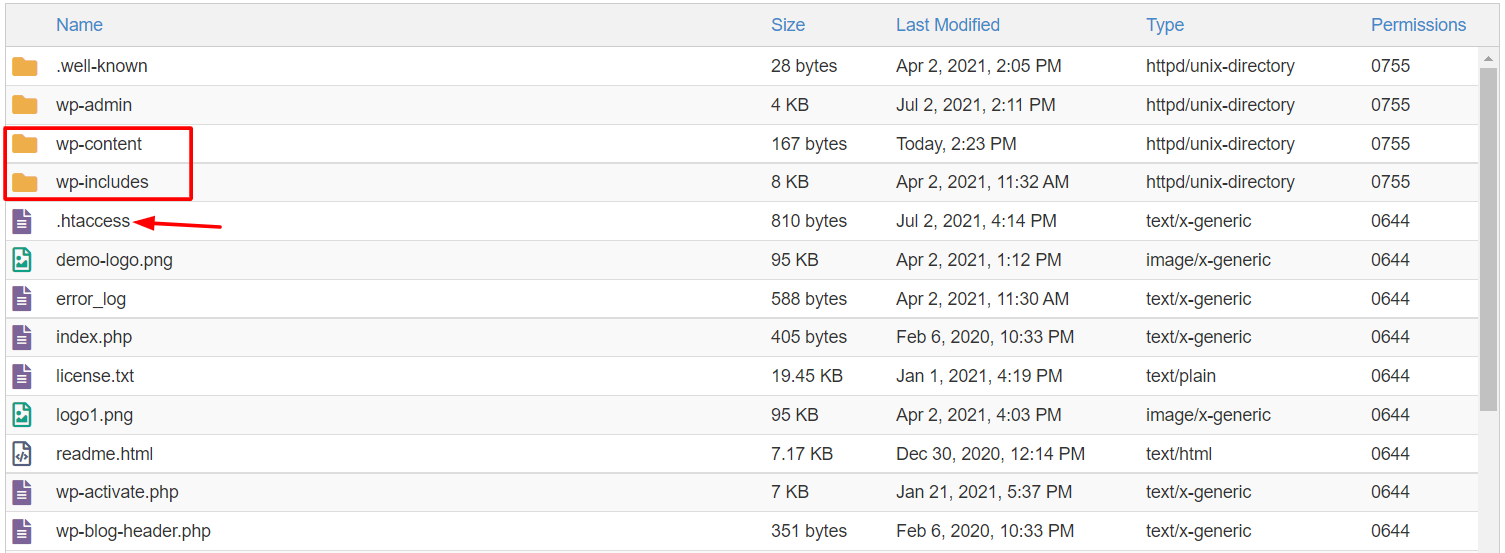
Navigate to your WordPress site folder, typically containing
/wp-content/and/wp-includes/.
Note: Enable Show Hidden Files in File Manager Settings to see the
.htaccessfile.
-
Locate the .htaccess file and edit it.
-
Paste the following code:
-
If the folder does not have a .htaccess file, create a new one:
-
Click +File in the top-right corner of File Manager.

-
Name it
.htaccessand click Create New File. 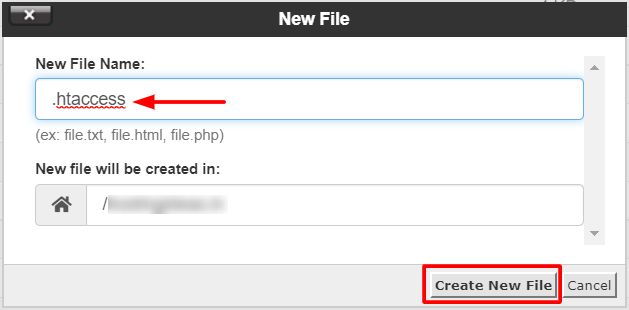
-
Edit the file and paste the code above.
-
This solution fixes the 404 error in most cases, especially after website migration.
II. Reset WordPress Permalinks
-
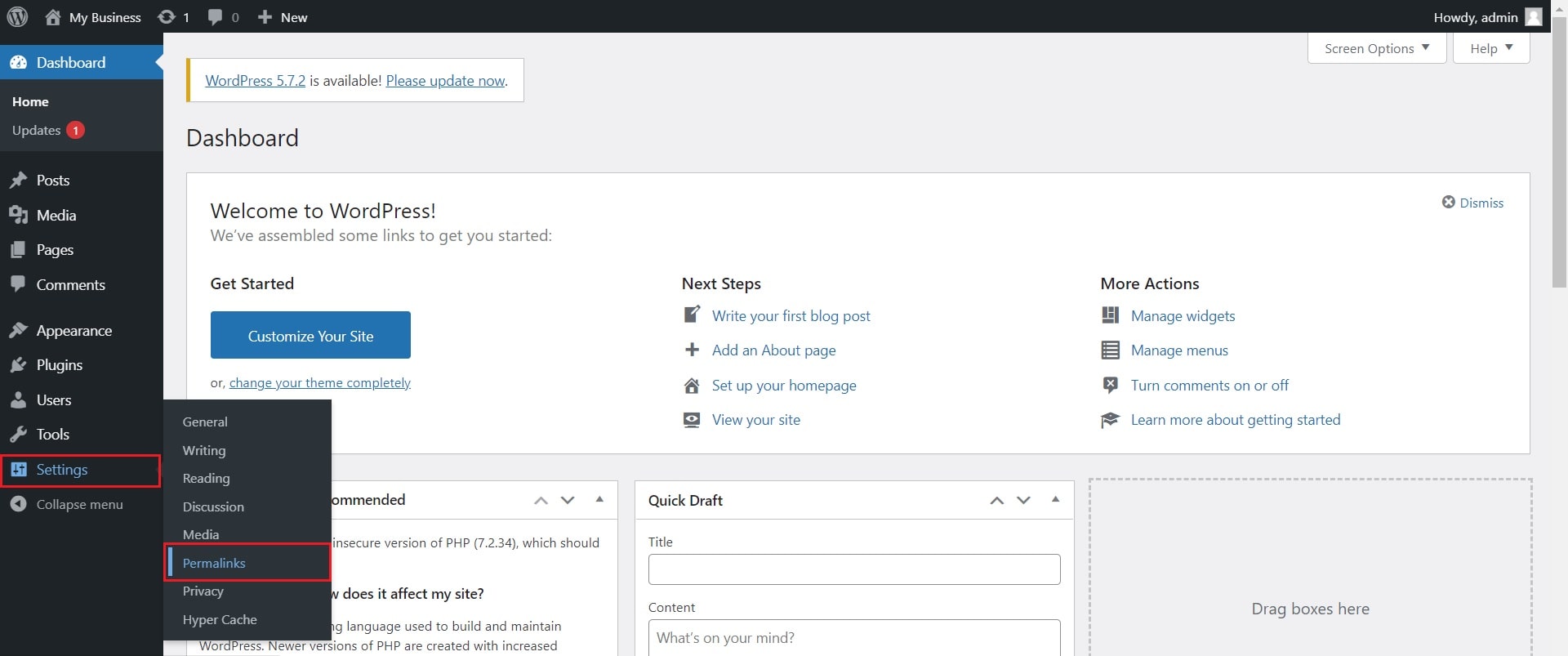
Log in to your WordPress Admin Dashboard.
-
Go to Settings → Permalinks.
-
Select Post name and click Save Changes.
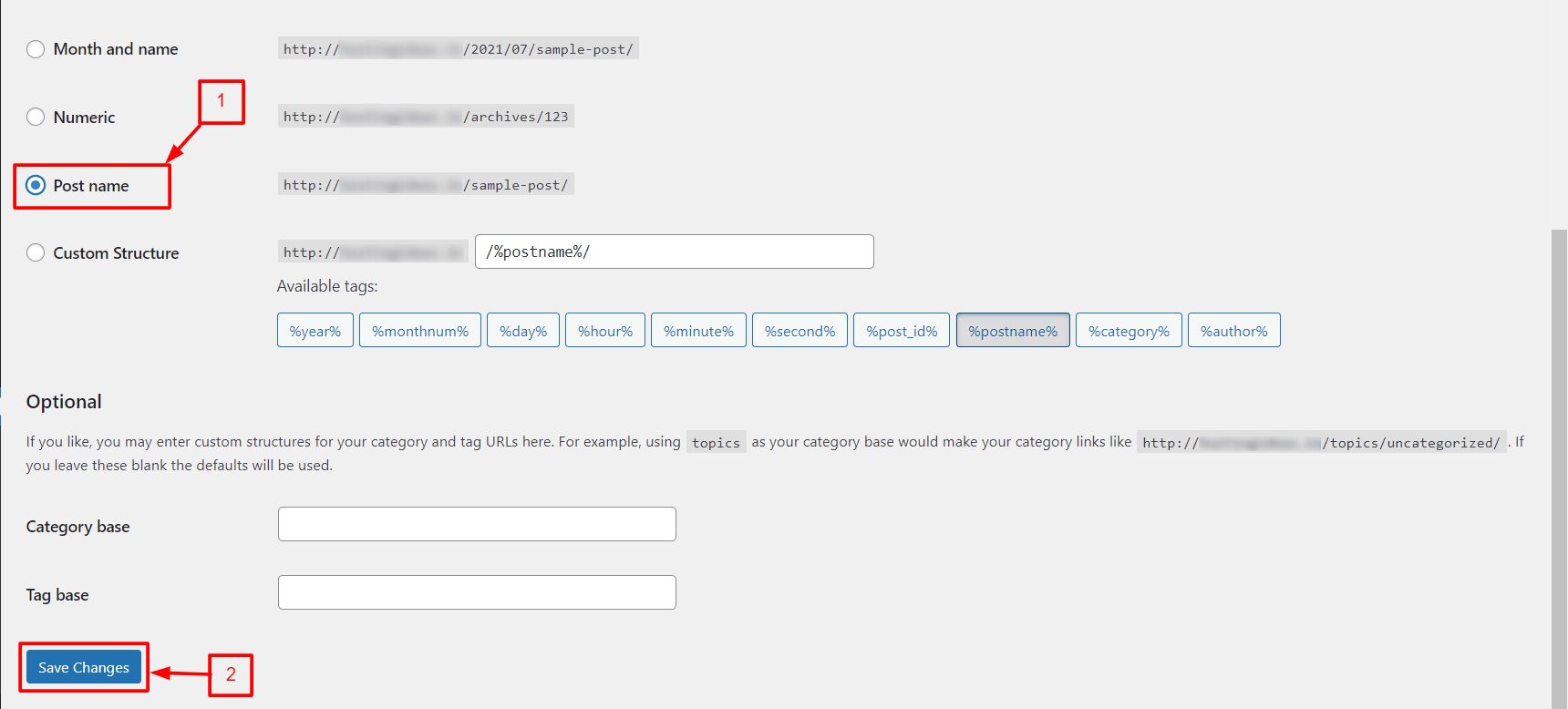
WordPress will automatically rewrite the .htaccess file and reset the permalink structure, resolving the 404 error.
Conclusion:
Following these steps ensures your WordPress site’s internal pages load correctly and eliminates the 404 Page Not Found error.